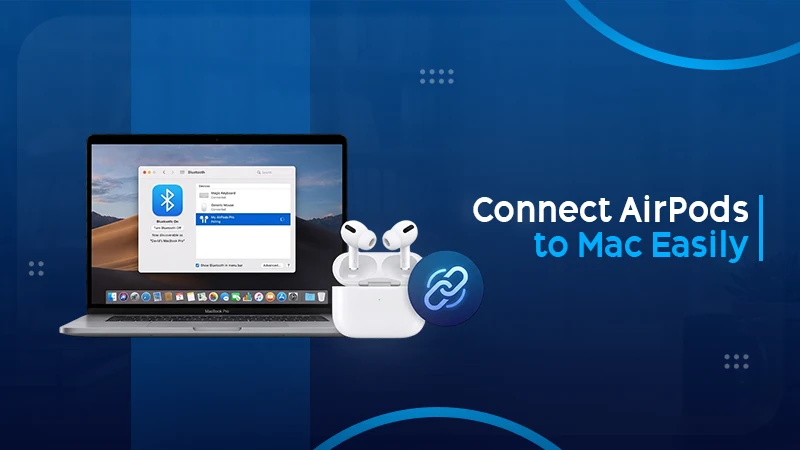
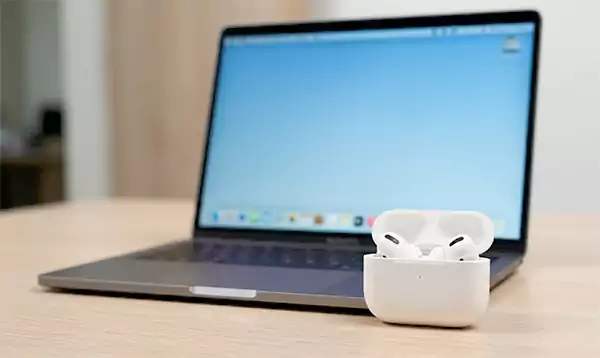
Some users connect MacBook to AirPods within seconds, whereas others find it difficult. But some people do not know how to pair AirPods to MacBook. Worry not! If you are one of those who want to pair AirPods in one go, your struggle ends here.
Here you will find the root cause of problems and possible solutions for each. You will finally learn how to pair AirPods with MacBook Air and Pro in one go.
Quick Answer:
How to Pair AirPods to MacBook
Follow these quick steps:
Turn on Bluetooth in System Settings
Open your AirPods case near your MacBook
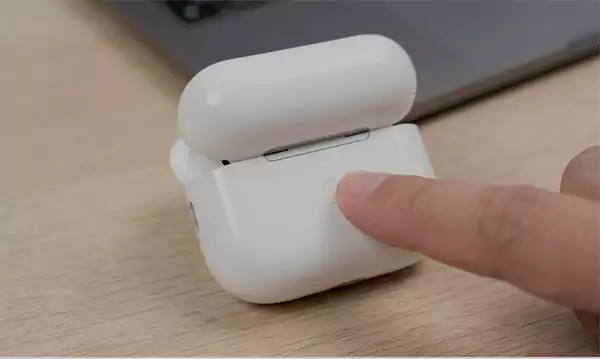
Long-press the setup button on the back for around 15 seconds
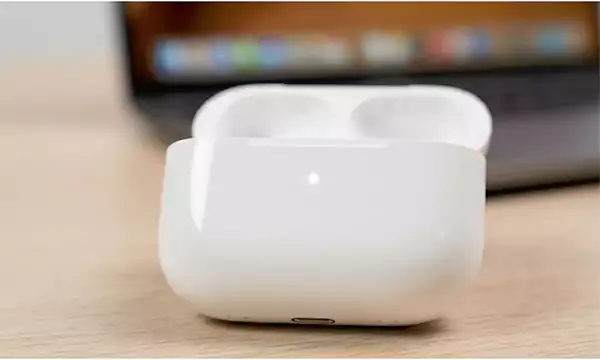
Wait for the light to turn white
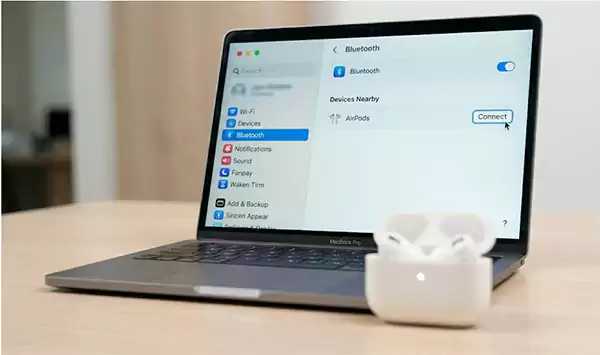
Click Connect from the Bluetooth devices list on your MacBook.
How to Pair AirPods to MacBook for the First-Time Setup?
If you are connecting AirPods to a MacBookfor the very first time, it takes less than 2 minutes. You have to pair it once only. After a successful setup, your AirPods get connected automatically every time you want to use them.
Follow these simple steps:
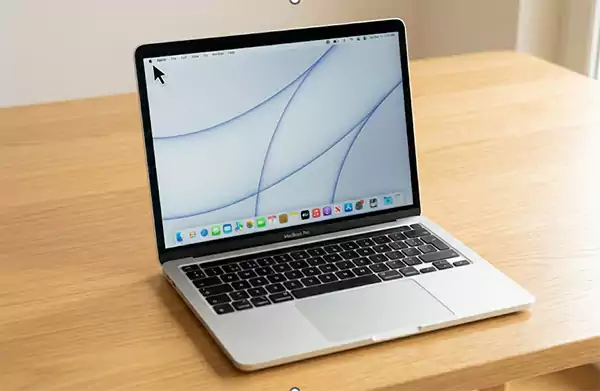
Click the Apple Menu in the top left-hand corner.
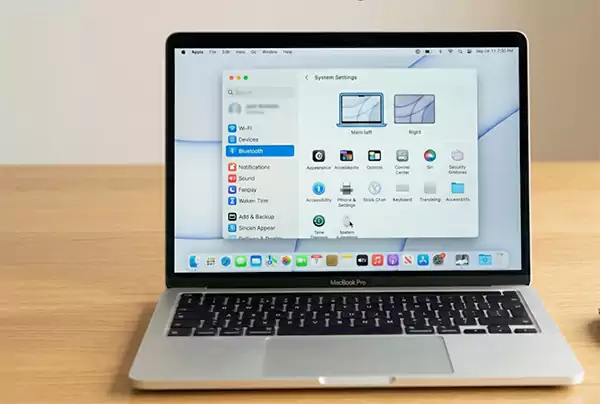
Open System Settings (macOS Ventura+) or System Preferences for older macOS.
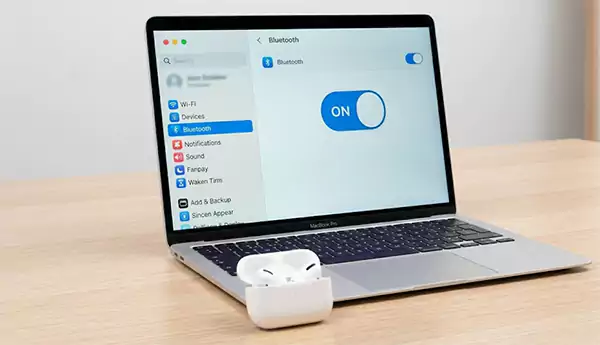
Open Bluetooth and ensure it is turned ON.
Keep your AirPods inside the case and open the lid.
Long-press and hold the setup button on the back of the case.
Wait till the status light reflects white.
Find your AirPods in the Bluetooth device list.
Click Connect.
You have successfully connected AirPods to your MacBook.
Do you also want to know how to pair AirPods to MacBook without iPhone?
One of the myths people usually have is that you must have an iPhone to connect AirPods to MacBook. It is completely wrong; you don’t need an iPhone for it.
Here is how you can do it without an iPhone:
Open System Settings → Search Bluetooth on your MacBook
Keep AirPods in the case and open the lid
Hold the setup button till the light turns white
Tap your AirPods’ name in the Bluetooth devices list
Click Connect
If you have an iPhone with the same Apple ID as your Mac, you don’t need to pair again. It appears automatically. You need not set it separately, just click connect and enjoy the audio.
Best Tip:If you have no iPhone, you can pair AirPods manually. It works perfectly every time.
Why AirPods and MacBook Work So Well Together?
You might wonder why AirPods and MacBook work so well together. Apple designs both devices to give a seamless experience to users via Bluetooth and iCloud. When both devices have the same Apple ID, the connection becomes much smarter and faster.
Here is why this best combination works perfectly:
Both have the same Apple ecosystem
AirPods can auto-switch between Apple devices
Shows battery levels directly on your MacBook
Can use Siri hands-free through AirPods
Apple hardware offers the best sound quality
Magical Tip: According to Apple’s official support page, AirPods automatically connect to the last used Apple device when we take them out of the case.
Before you connect AirPods to MacBook, please ensure everything is ready. Most connection failures happen if a very simple thing is missing.
Therefore, first go through this quick checklist:
Your AirPods are charged (even partially if not fully)
Your Mac’s Bluetooth is ON
The MacBook macOS version is 10.14.4 or later
Make sure AirPods are inside their charging case
You are within 30 feet of your MacBook
No other device is currently using your AirPods
Best Tip:If the battery seems very low, make sure to charge your AirPods for at least 10 to 15 minutes. Dead AirPods can never connect to any device.
How to Pair AirPods to MacBook Air and MacBook Pro?
If you also want to know how to pair AirPods to MacBook Air and MacBook Pro, follow the same instructions again. All the AirPods models work compatible with both MacBook variants. There is no further process required.
Here is a quick compatibility overview:
AirPods Model
MacBook Air
MacBook Pro
AirPods 1st Gen
Yes
Yes
AirPods 2nd & 3rd Gen
Yes
Yes
AirPods Pro 1st & 2nd Gen
Yes
Yes
AirPods Max
Yes
Yes
For MacBook Pro users specifically:
After successful pairing, go to System Settings → Sound → Output. Now select AirPods manually as an output device. It becomes important if you connect to external speakers or use audio software such as Logic Pro.
Extra info:The latest MacBook Pro models with M1, M2, or M3 chips have a more stable and faster connection to AirPods than older Intel models.
Why Don’t My AirPods Connect to MacBook?
Most users want to know the reason “Why my AirPods don’t connect to MacBook.” It is one of the most searched questions for Apple users.
Don’t worry, because most of the time, the issue is simple and you can fix it easily. Before finding solutions, always identify the main cause of problems.
Here are some common reasons:
Common Cause
How to Fix
Bluetooth is OFF
Turn on Bluetooth in System Settings
AirPods battery too low
Charge for 15–20 minutes first
Connected to another device
Disconnect from other devices
Outdated macOS
Update via Software Update
Not in pairing mode
Hold the setup button until the light flashes white
Conflicting Bluetooth devices
Turn off unused Bluetooth devices nearby
Corrupted pairing data
Forget the device and re-pair from scratch
For example,
Most people panic and think that their AirPods are faulty. But almost 90% is generally a Bluetooth connectivity issue. We can solve it with some simple steps.
How to Fix AirPods Not Connecting to MacBook?
Are you searching for how to fix AirPods not connecting to MacBook problem?There are some possible solutions that youshouldgo through one by one. Do not skip, as no one knows which one works for you. Each step has a specific solution.
Start with Fix 1 and go ahead only if the issue remains the same.
Fix 1: Toggle Bluetooth OFF and ON
This is the easiest possible solution that works more often than your expectations. When you restart Bluetooth, it clears general background glitches quickly.
Follow these steps:
Go to System Settings → Bluetooth
Turn Bluetooth OFF
Wait for at least 10 seconds
NowTurn Bluetooth ON
Try to connect your AirPods
Best Tip:Before trying other possible solutions, you should go for this. It usually solves at least 40% of your problems.
Fix 2: Forget and Re-Pair Your AirPods
If switching ON and OFF Bluetooth does not solve the issue, clearing the previously paired devices and starting again generally works. The corrupted pairing devices’ data is a very common issue responsible for connection failure.
Here is how you can do it:
Go to System Settings → Bluetooth → My Devices
Click the ⓘ icon next to your AirPods
Select “Forget This Device.”
Confirm by clicking Forget Device
Open the AirPods case and press the setup button till the light turns white
Click your AirPods onto the Bluetooth list and tap Connect
For example,
You previously connected your AirPods to a friend’s MacBook, and now they are causing a problem. Forgetting and re-pairing them solves this issue.
Fix 3: Restart Your MacBook
Sometimes systems running in the background can affect Bluetooth connectivity without an obvious reason. A complete restart may fix the issue and give your Mac a fresh start.
Follow these steps:
Click Apple menu
Select Restart
After the restart, go to Bluetooth Settings
Try connecting your AirPods again
Pro Tip:Don’t forget to save your current work before hitting the restart button. It takes almost two minutes and fixes general connection issues.
Fix 4: Completely Reset Your AirPods
This is the most effective solution. A factory reset disconnects all the previously paired devices. It allows you to start fresh on any device.
Follow these steps:
Keep AirPods in the case and close it
Wait for at least 30 seconds
Open the lid
Press and hold the setup button on the back for around 15 seconds
Wait till the light goes amber and then turns white
Your AirPods are now completely reset
Go to your MacBook Bluetooth Settings and pair them again
For example,
In case your AirPods do not work properly after connecting to multiple devices, a factory reset erases all connections and allows them to work like brand new.
Fix 5 Update macOS
Firstly, check your current macOS version and then match it with the latest version online. If your Mac is running on an outdated macOS version, it can also create severe Bluetooth compatibility issues with the latest AirPods models.
Apple releases updates regularly that automatically fix Bluetooth bugs. Or you can also upgrade your macOS version to the latest available.
Follow these steps:
Go to System Settings → General → Software Update
If you see an update is available, go for Update Now
Wait for the update installation, then restart your Mac
Now connect your AirPods again
Best Tip:Always use the latest macOS version. Most Bluetooth fixes are included in regular system updates that people are likely to avoid.
Fix 6: Reset the Bluetooth Module on MacBook
This is a more advanced solution. It resets the whole Bluetooth setting of your MacBook. But it does not affect other settings at all.
Follow these steps:
Hold Shift + Option on your Mac keyboard
Click the Bluetooth Icon from the menu bar
Select Reset Bluetooth Module
Click OK for confirmation
Now restart your MacBook
Re-pair your AirPods from Bluetooth Settings
Note:You may not see this option on newer macOS versions. In case it does not appear for you, skip this step and go back directly to solution 4, which is a full AirPods reset.
Fix 7 Check Sound Output Settings
Sometimes you can see your AirPods are connected to Bluetooth but do not play audio. This issue occurs when your MacBook is currently sending sound to another output device. To solve this issue, follow these steps:
Go to Mac System Settings → Sound → Output
Find your AirPods in the output device list
Set your AirPods as the output device
Adjust the volume accordingly and play a test audio
Quick Action
Always check System Settings → Sound → Output
AirPods Already Paired but Disconnected?
You might face the issue that your AirPods are already paired with your devices, but still show disconnected. In case you are struggling with this issue.
Kindly follow these steps:
Go to Settings → Bluetooth
Find your AirPods under My Devices
Tap the ⓘ icon
Tap Connect
Best Tip:Firstly, you should pair your iPhone with AirPods successfully. If you are using the same Apple ID with your MacBook and iPhone, your AirPods will appear automatically on your MacBook, too. You need not pair them on each device again.
Dos and Don’ts of Connecting AirPods to MacBook
Some people struggle with common problems that we can easily avoid. If you follow the right steps, you can connect your AirPods to your MacBook in one go.
Do’s
Always use the latest macOS version for the best AirPods compatibility
Keep your AirPods charged before using them
Set AirPods as the default output device in the sound settings
Use the same Apple ID on all Apple devices for automatic switching
Turn off Bluetooth in nearby Apple devices while troubleshooting
Don’ts
Never pair completely dead AirPods
Don’t use multiple active Bluetooth devices while pairing
Never ignore the white light, as it shows pairing mode
Don’t avoid firmware updates because outdated firmware creates most bugs
Don’t try to pair AirPods from more than 30 feet away
Conclusion
If you are struggling to find out how to connect AirPods to MacBook, the process is easier than you have ever expected. You need to focus on three important things.
Bluetooth Settings
Pairing mode
Software updates
If you keep an eye on these three factors, you hardly face any connection issues.
But don’t try to make it complex. You can start the process from the beginning with checks like battery percentage and recent updates. Follow the tips shared in this guide, and your AirPods will connect smoothly every time you try.
FAQs
How do I connect AirPods to a MacBook if they are already paired to my iPhone?
In case you use the same appeal ID on your MacBook and iPhone, you can see your AirPods appear in the Bluetooth settings automatically.
Follow the steps to connect:
Go to the system Settings –> Bluetooth –> click Connect
There is no requirement to repair them at all.
Why do my AirPods keep disconnecting from my MacBook?
There can be several reasons why this keeps disconnecting. The reasons include:
Low battery
Bluetooth interference
Automatic device switching
You can stop auto-switching. Follow this guide step by step.
Go to System Settings –> Bluetooth –> Click ⓘ the icon next to your AirPods –> Connect to this Mac “When last connected to this Mac.”
Can I connect AirPods to MacBook without an iPhone?
Obviously, you can connect. You don’t need to have an iPhone for it. Long-press the setup button of your AirPods to keep it in pairing mode. Now you can connect them manually.
Go to the System Settings –> Bluetooth –> Connect
It works perfectly.
How do I switch AirPods quickly from iPhone to MacBook?
You can either go to Bluetooth or the volume icon in your MacBook menu bar. Look for your AirPods and click on “connect.” They will switch immediately.
You can turn on automatic switching so that your AirPods automatically follow the Apple device that you are currently using.
Do AirPods work properly on a Windows PC?
Yes, you can connect AirPods to any Windows PC via Bluetooth. You can use them as normal earbuds only. Because some advanced features, such as active noise control, battery percentage display, auto ear detection, and Siri, will not work.