Siri commands are typed or spoken requests that you can use to control your phone without even touching it. These commands can efficiently work for setting alarms, timers, reminders, calling, and even sending text messages. If you are comparing newer Apple devices, our iPhone 17 Pro review also provides useful information about the latest iPhone experience.
Now with iOS 27, you get Siri AI, a smarter assistant to understand personal context and follow-up questions. Know the best iPhone voice commands, Siri setup, funny and hidden phrases, and solutions if Siri doesn’t work. You can also explore the latest iPhone 18 to understand how Apple’s newer devices fit into this experience.
Quick Answer
What are the best Siri commands?
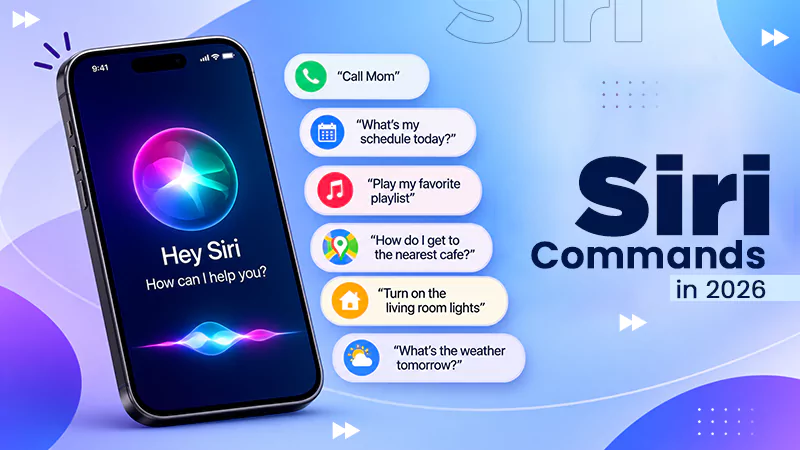
Here are the most helpful Siri commands you can use to do your tasks effortlessly:
Set an alarm for 05:00 AM.
How is the weather in Shimla this weekend?
Remind me to wish my friend happy birthday tonight at 12:00′.
Send my mother a message that I am at the gym right now.
Note: iPhones with iOS 27 have Siri AI, which can answer questions for on-screen content.
You can toggle Siri on from the Settings app and start using it with your voice commands. It works both ways: type to Siri or press the side button. Your device should have a reliable internet connection to use Siri effectively. The setup does not even take more than a minute. Moreover, you can add multiple ways to start Siri so that it can work equally in noisy areas and quiet libraries.
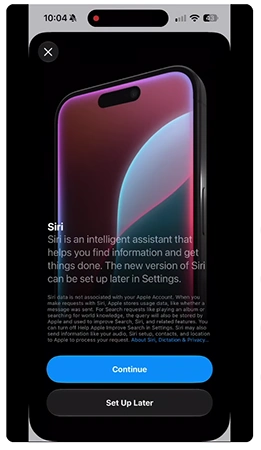
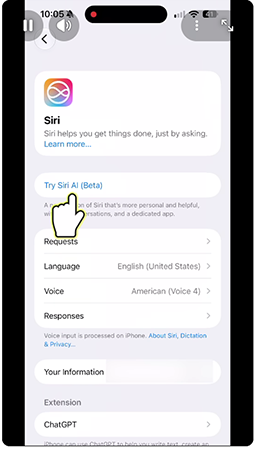
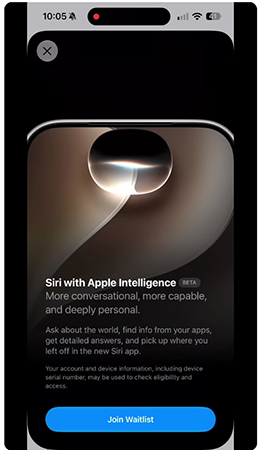
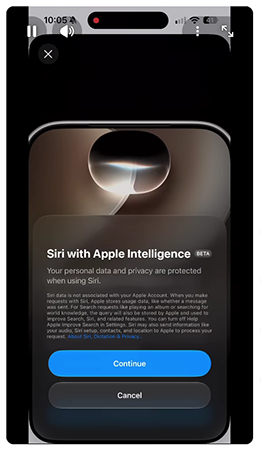
Steps to Turn On Siri
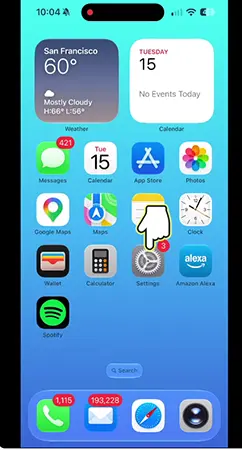
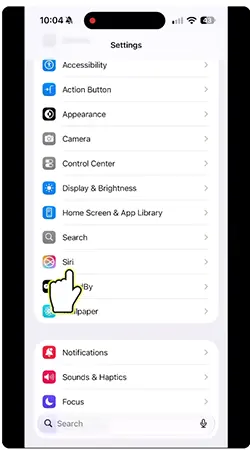
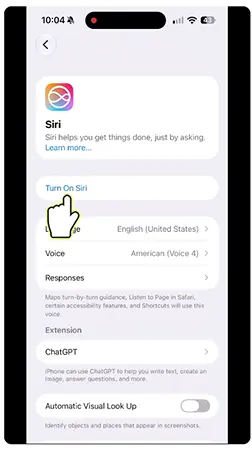
Here are the steps that you can follow on an iPhone with the iOS 27 version:
Go to the Settings app.
Click Siri (may also show as Apple Intelligence & Siri on some versions).
Tap Turn on Siri. (if you have not turned on Siri before).
Click Continue.
Click Try Siri AI (Beta).
Click “Join Wishlist” (you will get terms & conditions if Siri AI is available for your device; otherwise, join the waitlist).
Click “Continue.”
How to Start a Siri Command?
Here are 4 ways that you can use for Siri commands:
Siri app: Users who have access to Siri AI get a new app that will save conversation history.
Voice: Say “Hey Siri” or “Siri.” It will work only when this option is enabled in the settings.
Type: When Siri AI is turned on, you can type your request anytime. You can just swipe down from the screen center to use the ask field or Siri Search.
Side button: Long-press the side button to turn on Siri. If your iPhone has a Home button, long-press it rather than the side button.
What’s New in Siri Commands With iOS 27
Siri AI is Apple’s updated assistant launched on September 14, 2026, which is available on iOS 27. It is run by the next generation of Apple Intelligence. This is capable of understanding personal context in emails, photos, messages, follow-ups, and questions about on-screen content and web searches and can perform extra app actions.
This is what Apple confirms about the update:
Detail
What Apple Says
Availability
Unavailable for users with iPhone 13 or below.
Coming in October
French, Japanese, Korean, Portuguese, Spanish
Languages
Available in English beta as of now
Regions
Not initially available on iPhones in the EU or in China.
Supported iPhones
iPhone 15 Pro, iPhone 15 Pro Max, iPhone 16 or later, iPhone Air, iPhone Duo
Usage limits
Everyday limits for cloud-based features
Here are some of the latest Siri vocal commands when you can access Siri AI:
“What is this website all about?”
“Show me the promotion mail Jacob sent me last month.”
“Add this song to my driving playlist.”
“Write me a short birthday wish for my colleague.”
For another perspective on Apple’s current smartphone lineup, you can also check the iPhone 18 Pro Max.
Best Regular Siri Commands for iPhone
The most helpful regular Siri commands can easily handle alarms, calls, texts, timers, and navigation. These commands work equally well not only with Siri AI but also with classic Siri.
Therefore, if anyone has an iPhone, no matter which model, they can use it. You need not exaggerate the wording; just be natural and give relevant information such as times, places, locations, or names for more accurate outcomes. Users considering other smartphone options can also compare these features with devices such as the Google Pixel 9a.
Task
Command to Say
Alarm
“Wake me up at 9:00 AM.”
Calls
“Call Kamal on speaker.”
Directions
“Take me home.”
Location reminder
“Remind me to keep my wallet when I leave home.”
Math
“What is 6.4% of 250,000?”
Messages
“Read my new mail.”
Parking
“Where did I park my vehicle?”
Timer
“Set a timer for 20 minutes.”
Translation
“How to say thank you in German?”
Weather
“How is today’s weather?”
Siri Commands to Control Your iPhone Settings
Siri has access to general settings without even opening the control center. It becomes super useful when you are busy with something like driving, cooking, or mopping. You can use these iPhone voice commands to activate these features within a second.
“Turn on Do Not Disturb mode.”
“Turn on low power mode.”
“Hang up (first you need to activate call hang up in the Siri settings first.)”
“Turn on the flashlight.”
“Take a screenshot.”
“Turn on the dark mode.”
Tip: Never say “Turn off Bluetooth” when you are using AirPods. Because Siri will also use the audio connection.
For users who rely heavily on wireless audio, the Technics EAH-AZ100 review can also help when considering premium earbuds.
Secret Siri Commands and Coolest Siri Commands
The secret Siri commands are much less popular than phrases that can help you with handy tools or amazing replies. Some of them can even solve actual problems such as locating a missing device or naming a song, while others are for entertainment.
Important secret commands:
“Where is my iPad?” helps you find your device using Find My.
“Show me pictures from Manali this February.” Check your photo album month-wise.
“Which song is it?” identifies the ongoing music track with the help of Shazam.
Coolest Siri commands for fun:
“Crack me a joke”
“Play beatbox music for me.”
“What does two and two make?”
“Flip a coin”
“How much do apples cost per kg?”
Know The Difference Between Classic Siri and Siri AI
Classic Siri primarily pays attention to single and quick commands, whereas Siri AI can easily handle personal context and long conversations. Although both are good at basic commands, Siri AI outperforms them by searching your own data and answering follow-up questions.
Here are the major differences:
Factor
Classic Siri
Siri AI
Chat history
Not stored in an app
The Siri app is synced with iCloud.
Conversation style
Mostly single request at a time
Follow-up questions and replies
iPhone support
All iOS 27 iPhones
iPhone 15 Pro and later
Personal data
Limited
Messages, emails, and photos
Screen awareness
Basic
Answers about on-screen content
The experience can vary between iPhone models, so users comparing Apple devices may also find the Samsung Galaxy Z Flip7 useful as a point of comparison for smartphone features.
Fixing Siri Not Responding: Common Problems
If Siri assistance does not work for you, make sure to check your internet connection first. Next, move on to the voice trigger in Settings. Even if these tips do not work for you, follow the possible solutions below one by one.
Siri AI is unavailable: For Siri AI, check your iPhone model first, as it is available on iPhone 15 and later models.
Siri is unable to hear you: Open your device settings → Siri → Requests → toggle off “Hey Siri” or “Siri.” Now turn it on and do the same setup phrases again.
Requests stop working: It also happens when you cross your daily limit. You should try again the next day.
Siri does not answer verbally: Open your device settings → Siri → Responses → Click “Prefer Spoken Responses.”
Still does not work: Update your device to the latest available iOS version.
If you are troubleshooting an older smartphone or considering a replacement, the Samsung Galaxy A31 review provides another device-focused reference.
Dos and Don’ts for Using Siri Commands
Make sure you keep these points in mind while using Siri commands.
Do’s:
Say normally and add times, names, or places for specific commands.
Select the duration of Siri chat history, either 30 days, 1 year, or forever.
Include your contact details in Siri settings under MY Information so that it works for the “Take me home” command.
Type to Siri instead of using voice commands when you are in meetings, libraries, or any other quiet places.
Don’ts:
Never say UPI PINS or any passwords loudly while in public places.
Do not turn off Bluetooth using a Siri command when you are listening to music in AirPods.
Do not consider Siri AI answers as perfect ones, especially for money, legal advice, or health; always verify them from official or reliable sources.
For people who use their phone as part of their everyday work and study routine, the best laptop for students can also be useful when choosing a complementary device.
Conclusion
Some incredibly useful Siri commands help us save time in daily activities. They include directions, timers, calling, texts, and settings. But with iOS 27, you can use Siri AI for screen awareness, personal context, and conversations from iPhone 15 to the latest models.
Select at least 5 commands from this guide that you find most useful and use them for everyday activities, and adapt new ones over time.
FAQs
Q1) What is the most useful Siri command?
Some useful Siri commands, like “set a timer for 30 minutes” and location-based reminders, can be entered on any iPhone. The iPhone may prompt you to enter a reminder based on your location.
For example, it can remind you to call a friend when it detects that you have arrived at the restaurant.
Q2) Can I use Siri AI on iPhone 14?
According to Apple, the latest Siri AI is available on the following iPhones: iPhone 15 Pro, iPhone 15 Pro Max, iPhone 16, iPhone 16 Pro, iPhone 16 Pro Max, iPhone Air, and iPhone Duo. The iPhone 14 will get iOS 27 but will have the classic Siri.
Q3) How do I type to Siri instead of talking?
To use Siri AI on an iPhone 14 or later, swipe down from the top of the screen and enter your request in the Search/Siri bar. You can also open the Siri app. On Apple devices, you may need to enable Type to Siri in Settings.
Q4) Are Siri AI features free to use?
Yes, the Siri AI features are currently free, but Apple has stated that they will charge a fee for some features in the future.
Q5) Does Siri work without an internet connection?
According to Apple, you will need an Internet connection to use Siri. iPhones may support simple Siri commands such as timers offline. But other Siri features will still require an Internet connection.
Q6) Why can’t I see Siri AI after updating to iOS 27?
Siri may not be fully available in your iPhone model, region, or language. Some users of older iPhones may be able to use some Siri AI features if they are in the United States.